
Tuesday, January 2, 2024
Introducing Entry Forms! And few 3mail updates
 |
| Example of an entry form that a guest would see to start a chat |
 |
| The guest sees the chat box after clicking the "Start chat" button |
 |
| What the operator sees after the guest submits the entry form |
And if you would like to collect other sorts of information from the guest, you can do that too! For example, you can add a drop-down menu for the guest's status, such as undergrad, grad, staff, unaffiliated, etc... Just like name and email, custom metadata is shown to operators during the chat and also saved to Chat History.
Entry forms are enabled on a per chat skin basis. Administrators will find the entry form editor within the chat box skin editor of the administrative dashboard. When editing a chat box skin, administrators will see a "Require guest to complete an entry form before chat" checkbox that creates or removes the entry form for the chat box skin. Once the entry form checkbox is checked, an "Entry Form" tab appears between the "Branding" tab and the "Wicked CSS Hacks" tab.
 |
| Chat Skin Editor in Administrative Dashboard ("Entry Form" tab appears when checked) |
 |
| Entry Form Editor |
Updates to 3mail
- Each user may create their own signature for email drafts. Personalized signatures (if defined) will override the shared signature set for a mailbox. Personalized signatures can be configured in the user preferences area of the webclient or standalone 3mail.
- You may insert private FAQ content when composing emails. Previously you were limited to public FAQ content only.
- There is now a link to the admin dashboard from the standalone 3mail page for admins.
Wednesday, September 6, 2023
Promoting your LibraryH3lp service
Did you know that LibraryH3lp provides resources to help you promote your services to guests? We sure do!
We offer both printable and social media materials that you can use as-is or as a starting point for your promotional campaign. You can find it all on the LibraryH3lp FAQ.
 |
| Image for use in Meta Stories |
Monday, August 21, 2023
Latest round of bug fixes
Webclient
- The navigation sidebar on the left hand side of the webclient now remains hidden until after a user logs in.
- A link to the administrative dashboard is now visible for mini-admins within the navigation sidebar. Previously this link was only visible for full administrators.
- Those users with sufficient permissions will be able to delete chats within the individual chat view on the Chat History page.
3mail
- The navigation sidebar on the left hand side of 3mail now remains hidden until after a user logs in.
- We fixed a bug where the subject line content of a draft would disappear when adding CC or BCC recipients.
Administrative Dashboard
- Those users with sufficient permissions will be able to delete chats within the individual chat view on the Chat History page.
- Within the User Management page, users must be logged out before administrators can delete them.
Guest chat box
- The send file and email transcript options are not available until a chat begins.
Friday, August 11, 2023
Get your LibraryH3lp status alerts here
For many many years, we have used Twitter to publish LibraryH3lp system status alerts. It was handy for a number of reasons, including that no one needed to be signed in with a Twitter account to read the messages. Alas, things have changed and Twitter is not as convenient as it once was.
In the interest of simplicity and visibility, we're moving our status alerts here, to our blog. Status alerts will be located at the top of the right sidebar so you can quickly see if there is a known technical problem afoot in LibraryH3lp-land.
System status alerts are issues that impact your staff's ability or your guest's ability to use LibraryH3lp in some way... Hardware failures, widespread networking issues and data center problems are all examples. Thankfully these sorts of issues are rare. Because these problems could mean that our servers are not reachable, our blog (hosted by Blogger) is a perfect place to share them.
We will continue to use the Message of the Day feature within the LibraryH3lp admin dashboard and webclient to share news items of general interest to our customers and their staff.
For those customers that still actively engage on Twitter, don't worry. We will continue to tweet the same status alerts we post to the blog so you will see and receive those important messages in the familiar way.
Friday, May 27, 2022
New Users Management page
If you have administrative rights to all or part of your LibraryH3lp subscription, this post is for you. We've updated the users management page in the administrative dashboard. The new page has been in beta testing for quite some time and we've wrapped in customer feedback as well as bug fixes during that time. Please continue to provide constructive feedback on how we can further improve this page.
 |
| Updated user management page in administrative dashboard |
We'll update the administrative dashboard on each of the servers in the coming weeks. And we'll update this section as we go to note the date. Here's the release schedule:
- Canada - May 27, 2022
- Singapore - June 21, 2022
- Europe - June 23. 2022
- Main (US) - July 5, 2022
Creating and updating users
Managing chat contacts
When users forget to logout


Administrative permissions
But I loved the old page

Friday, January 14, 2022
Staffing Assignments in the Webclient
 |
| Selection window seen when logging into the webclient for staffing |
 |
| An alert message is shown when you are opted OUT of staffing at least one queue. |
In the selection window and at the bottom of your queue assignments list, there is a handy "Receive chats on ALL queues" checkbox. You can use this to ensure all staffing assignments are set to YES. Folks assigned to a lot of queues will find this checkbox especially useful. Also folks with a lot of staffing assignments may need to scroll in order to review them all before connecting.
 |
| Click "Staffing Assignments" to opt in/out of queues after login. |
After you click "Staffing Assignments" in the contacts sidebar, you'll see the same YES/NO buttons as you did at login.
 |
| Use the YES/NO buttons under "Staffing Assignments" to control whether or not you receive chats. |
Why don't I see this change?
- Singapore: January 14, 2022
- Europe: January 14, 2022
- Canada: January 15, 2022
- Main (North America): January 29, 2022
What happens if I don't use the webclient for staffing?
Sunday, August 29, 2021
2nd Generation Chat Box Coming to LibraryH3lp
We hope everyone had a great summer. Fall is already upon us, and we wanted to share some big news: a next generation chat box is coming to LibraryH3lp packed with features you've been asking for.
But wait. There's more! We also want to show off some neat new features in the admin dashboard and webclient for staffing.
We'll be rolling the new features described in this post to each of the regional servers soon. Here's the release status so far (and we'll update this section as rollouts happen):
- Canada: August 29, 2021
- Singapore: September 3, 2021
- Europe: September 3, 2021
- Main (North America): September 11, 2021
Easier Chat History search
It's now even easier to search chats in the Chat History page, which is common to both the admin dashboard and the webclient for staffing. As before, there's the area at the top of the page where you can search chats by date, transcript keywords, or most any bit of chat metadata either by typing you search parameters in the search box or by using the advanced search dropdown and filling out the search fields.
But now there are two new features: one-click narrowing of search parameters and easy-to-remove-search facets.
When you visit the Chat History page, you'll see all the chats which match your current search criteria (this week's chats by default) in a table. We've added hyperlinks to the guest, protocol, queue, and operator fields in that table for each chat. Clicking on any of these links for a chat will automatically add the value of that field to your search so you can quickly narrow your search to a particular guest, protocol, queue, operator, or any combination of these metadata fields. You'll also see these fields added as facets to your search.
Here's an example of the new search features in action:
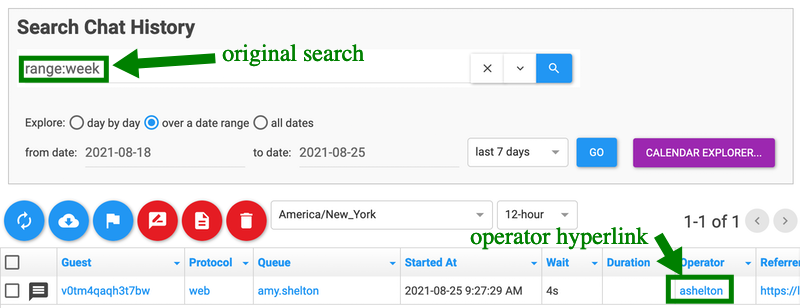 |
| Before narrowing search by clicking on an operator hyperlink |
 |
| Clicking an operator name narrows the search to a particular operator and adds a facet |
New Webclient Features
Today's chats with the guest
Each incoming guest chat over a queue now includes a history hyperlink as part of the chat metadata. Clicking that hyperlink lets you quickly view today's chats with that guest, which is especially handy for repeat guests who may have previously chatted with another operator or to refresh your memory on a prior chat with a guest.
 |
| New "History" metadata on chats within the webclient. Click to see today's chats for the guest. |
 |
| Volume control for webclient sound notifications |
2nd Generation Chat Box (Yay!)
Without further ado, we're excited to announce the second generation LibraryH3lp chat box packed with lots of great new features. Don't worry, we haven't gone crazy with the redesign and guests who have used your chat box before will still find it familiar.
 |
| Default 2nd generation chat box with no customized skin |
Upgrading your existing chat box skins is super simple in many cases and literally just takes a couple clicks. Plus upgrades are FREE. That's right, it's included with every subscription.
Here are the new things that guests will see immediately after you upgrade:
- more spacious typing area that auto-sizes based upon chat box dimensions
- modernized icon set for chat features such as emailing transcripts
- new icon to enable/disable visual notifications of new chat messages (pop-out and follow-me chat box styles only)
- new icon to review and choose emojis to insert into the conversation
- new icon to clear chat history which replaces the old 'Clear Chat History' button
After you've upgraded the chat skin, you can then take advantage of some new features and customization options which include:
- Add an optional, customizable greeting message that appears in the transcript area at the beginning of a conversation. This is separate and different from the concierge auto-response in that this message is NOT part of the chat transcript per se and appears to the guest before a chat starts.
- Create and present a chat policy to guests and optionally require guests to acknowledge your chat policy before chatting.
- Customize the 'Type here to chat. Press ENTER to send.' typing instructions for the chat box.
- Disable file uploads for guests if you do not want guests sharing files with operators.
NOTE: If you have a chat skin which is highly customized though advanced customizations in Wicked CSS Hacks, those customizations will be lost if you choose to upgrade through the default upgrade process. The reason that the contents of Wicked CSS Hacks are purposefully not preserved is because much of what is valid for a Generation 1 chat box is NOT valid for a Generation 2 chat box. That is, the old Wicked CSS Hacks content will likely just make your updated chat box look strange and is no longer needed. Please contact LibraryH3lp support if you'd like assistance upgrading any chat skin or have questions.
Updated Chat Box Skin Editor
Finally, we've redesigned the Chat Skin Editor in the admin dashboard. The new editor makes it easy to search your existing chat skins and see what each skin looks like at a glance.
In the redesigned editor, you'll see an "Upgrade skin to latest generation" button when you edit any of your first generation chat skins. You can use this button to upgrade each skin.The redesigned Chat Skin Editor comes with some new, schnazzy features:
- There are color pickers with built-in WCAG color contrast checkers to help you style your chat box skin while ensuring your skin meets color contrast accessibility standards.
- Rich text editors are available for parts of the chat box where there is text content, like the title.
- As before, you can see your changes to the chat box skin update in real-time. But now you can also click on the visualization of your skin to highlight the settings in the editor that are relevant to that portion of the skin.
 |
| Redesigned Chat Skin Editor |
With the redesign, we've broken up the chat box skin settings into two groups -- Branding Basics and Additional Flair. The Branding Basics group represents the most commonly tweaked skin settings and Additional Flair is for other customizations which are less commonly tweaked.


